
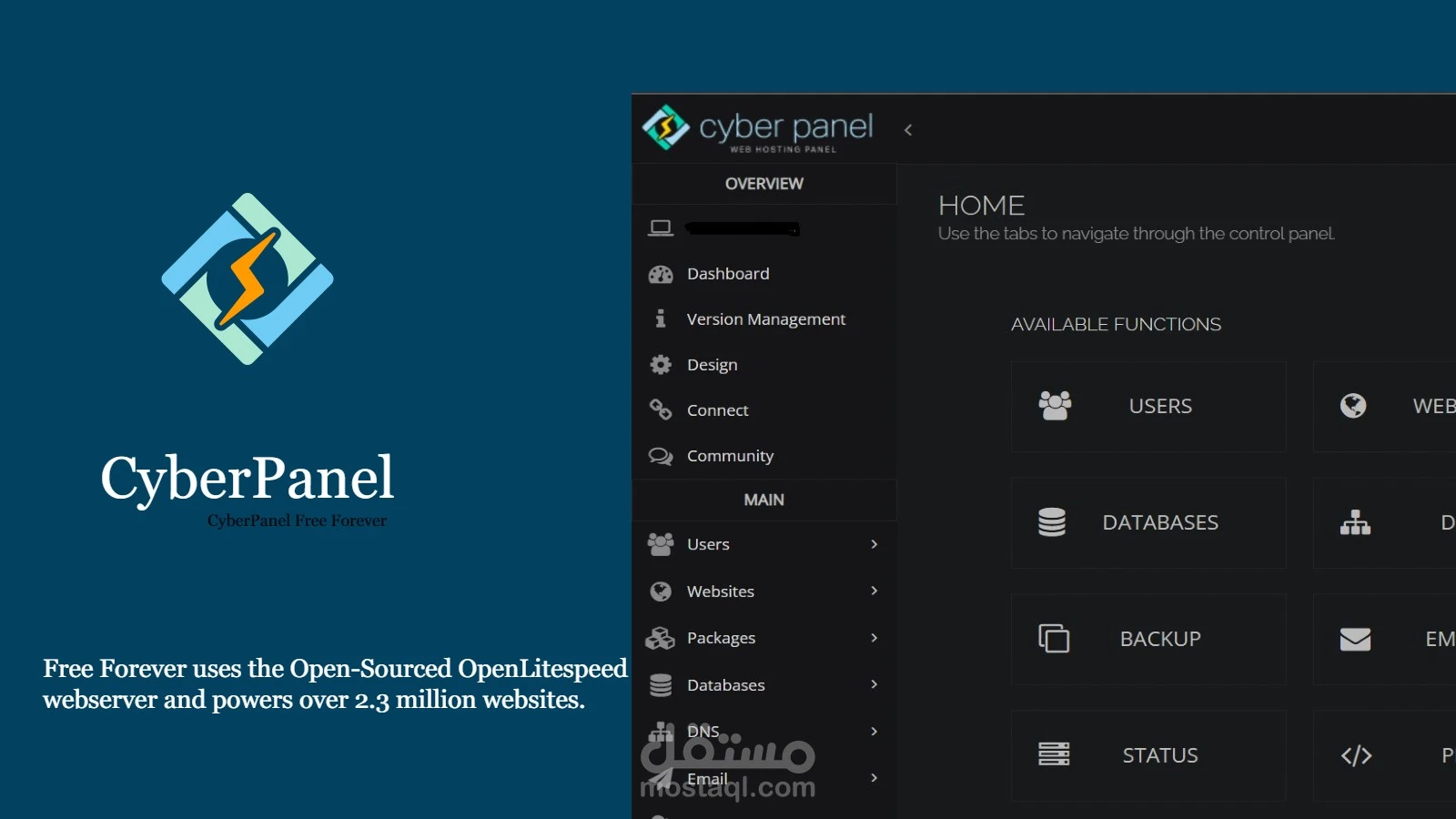
CyberPanel Setup Wizard - Ultimate Guide
CyberPanel is an advanced, open-source web hosting control panel designed specifically for LiteSpeed Web Server. Whether you're managing a single website or an entire fleet of domains, CyberPanel offers an efficient, feature-rich, and user-friendly experience.
In this ultimate guide, we will explore the step-by-step **installation, configuration, security, performance optimization**, and **backup** features of CyberPanel.
Why Choose CyberPanel?
- ⚡ **Ultra-fast performance** with LiteSpeed
- ? **Advanced security** features
- ? **One-click WordPress installation**
- ? **Automated backup and restore**
- ? **Cost-effective alternative to cPanel**
System Requirements
Before installing CyberPanel, ensure that your server meets the following requirements:
- ? **Operating System**: CentOS 7, Ubuntu 20.04, AlmaLinux, Rocky Linux
- ? **RAM**: Minimum **1 GB** (Recommended: **2 GB or more**)
- ? **Disk Space**: Minimum **20 GB**
- ? **Root or sudo access required**
How to Install CyberPanel
To install CyberPanel, connect to your server via SSH and run the following command:
sh <(curl -s https://cyberpanel.net/install.sh)Follow the interactive installation steps:
- Select **LiteSpeed or OpenLiteSpeed**
- Set **Admin Password**
- Enable **PowerDNS (optional)**
- Enable **Postfix for emails (optional)**
- Enable **FTP services**
CyberPanel Initial Setup Wizard
After installation, access the **CyberPanel dashboard** by entering:
https://your-server-ip:8090Default login credentials:
- ? **Username**: admin
- ? **Password**: (the one you set during installation)
Once logged in, complete the **CyberPanel Setup Wizard** by configuring your server settings.
How to Add a Website and Domain
- Navigate to **Websites → Create Website**
- Enter **domain name, email, and package settings**
- Click on **Create Website**
Security Best Practices
? To ensure your CyberPanel is secure, follow these best practices:
- ✅ **Change default admin credentials**
- ✅ **Enable CSF Firewall**
- ✅ **Use strong SSH passwords or SSH keys**
- ✅ **Keep CyberPanel updated**
Optimizing CyberPanel for Performance
For **better speed and SEO performance**, optimize your CyberPanel by configuring **LiteSpeed Cache, Redis, and PHP settings**.
- ? Use **LiteSpeed Cache** for WordPress
- ? Enable **Brotli compression**
- ? Optimize **MySQL/MariaDB settings**
- ? Adjust **PHP memory limits and execution times**
For advanced optimizations, check LiteSpeed Optimization Guide.
Using Proxy License with CyberPanel
Reduce **LiteSpeed licensing costs** by using Proxy License. This solution helps minimize expenses while maintaining performance.
Backup and Restore in CyberPanel
To back up a website:
- Go to **Backup → Create Backup**
- Select the **website** and start the backup
To restore a website:
- Go to **Backup → Restore**
- Choose the **backup file** and restore
Advanced Customization & Integrations
CyberPanel supports **Cloudflare, Redis, Elasticsearch, and custom PHP configurations** for enhanced performance.
FAQs
Is CyberPanel free?
Yes, CyberPanel has a free version, and a paid **CyberPanel Enterprise** version with premium features.
Can I migrate from cPanel to CyberPanel?
Yes, CyberPanel offers an **easy migration tool** for cPanel users.
Does CyberPanel support Nginx?
No, CyberPanel is **optimized for LiteSpeed**, but OpenLiteSpeed is a free alternative.
How can I update CyberPanel?
Run the following command via SSH:
sh <(curl -s https://cyberpanel.net/upgrade.sh)How do I optimize WordPress on CyberPanel?
Use LiteSpeed Cache Plugin, enable **HTTP/2**, and configure **Redis caching**.
Can I install CyberPanel on shared hosting?
No, CyberPanel requires a **VPS or Dedicated Server** with root access.
Conclusion
CyberPanel is an **excellent alternative to cPanel**, offering **speed, security, and cost-efficiency**. By following this guide, you can set up, optimize, and secure your CyberPanel instance efficiently.
? Get started with CyberPanel today and maximize your hosting performance!